requirements.txt in Python
Two commands every Python developer needs: pip freeze captures your environment, pip install -r recreates it anywhere.
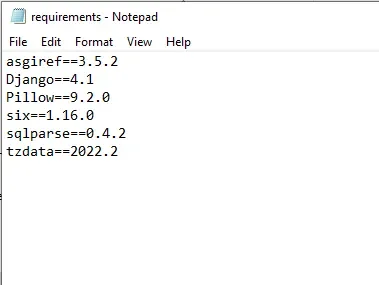
requirements.txt is a plain text file that lists a Python project's dependencies — one package per line, usually pinned to an exact version — so the environment can be recreated identically on any machine.
The workflow is two commands: pip freeze > requirements.txt captures every package installed in the active virtual environment with its exact version, and pip install -r requirements.txt reinstalls that exact set anywhere else.
This is what makes a project portable: without pinned versions, a collaborator or a cloud platform installs whatever is latest today, which may rename APIs, change defaults, or break behavior your code depends on.
The file supports exact pins (==), minimum versions (>=), compatible releases (~=), comments, and extras, and it belongs in version control next to your code.
The Problem
Three situations where version mismatches kill projects:
- Legacy projects: code written with an older scikit-learn uses an API that was renamed or removed in the version you have installed
- Collaboration: your colleague's environment has TensorFlow 2.12 while yours has 2.15 — different behavior, different errors
- Cloud deployment: your app works locally but breaks on AWS, Azure, or GCP because the platform installs the latest version, not the one you developed with
The Solution: requirements.txt
requirements.txt is a plain text file that lists every package name and its exact version number.
Anyone can recreate your exact environment from this one file.
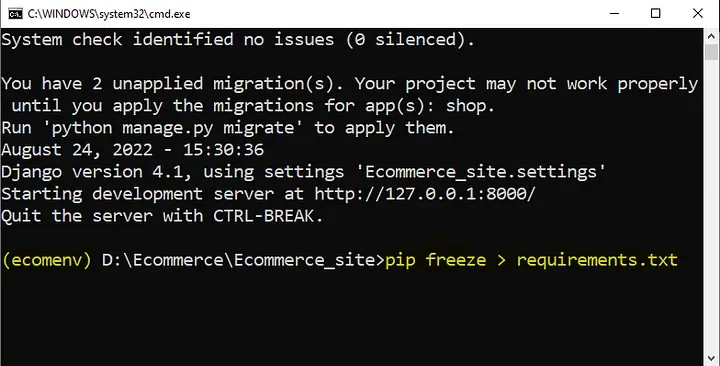
pip freeze outputs every installed package and its version — redirect it to a file to capture your environment.Command 1: Create requirements.txt
Activate your virtual environment first, then run:
pip freeze > requirements.txtThis captures every installed package and its exact version into the file. Always run inside an activated virtual environment — otherwise you'll capture system-level packages too.
Command 2: Install from requirements.txt
pip install -r requirements.txt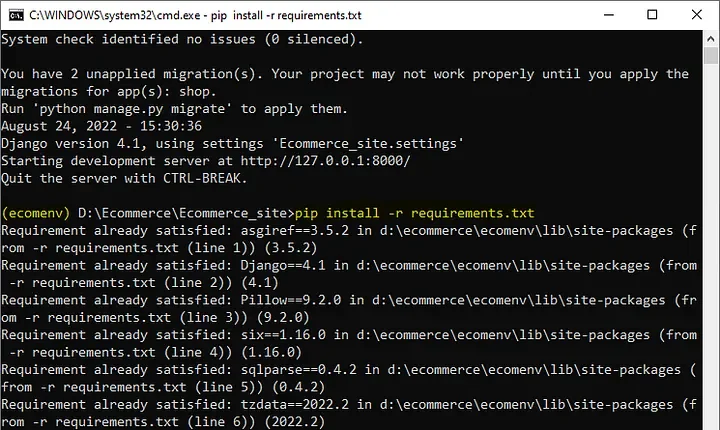
pip install -r requirements.txt recreates the exact environment on any machine.
The -r flag tells pip to read requirements from a file.
Every package is installed at the exact pinned version — same result on any machine, any cloud platform.
What Can You Write in a requirements.txt File?
The file isn't limited to package==version lines. Pip's requirement syntax supports comments, version ranges, extras, and even including other requirement files:
# exact pin — fully reproducible
numpy==1.26.4

# compatible release — allows 2.2.x patch updates, blocks 2.3
pandas~=2.2.0

# minimum version — anything newer is accepted
requests>=2.31

# extras — install optional dependency groups
uvicorn[standard]==0.29.0

# include another requirements file
-r requirements-base.txt
The specifiers do different jobs. == is for reproducibility — deployments and CI should get exactly what you tested.
~= (compatible release) accepts bug-fix updates while blocking breaking ones.
>= is the loosest and belongs in library metadata more than application requirements — an unbounded range that resolves differently every month is how "works on my machine" bugs are born.
A common project convention is two files: requirements.txt for runtime dependencies and requirements-dev.txt that starts with -r requirements.txt and adds test and lint tools (pytest, ruff) on top.
When Is pip freeze Not Enough?
pip freeze has one blind spot: it flattens everything.
Your project may directly use five packages, but freeze outputs fifty — the five plus all their transitive dependencies — with no record of which is which.
Six months later, nobody remembers whether idna is something you chose or something requests dragged in.
Tools like pip-tools fix this by separating intent from result: you hand-write a short requirements.in with just your direct dependencies, and pip-compile generates the fully pinned requirements.txt, annotating every transitive package with the reason it's there.
| Aspect | pip freeze | pip-tools (pip-compile) |
|---|---|---|
| Input | Whatever is installed in the environment | Hand-written requirements.in of direct deps |
| Direct vs transitive | Indistinguishable — one flat list | Transitive deps annotated with their source |
| Stray packages | Captured (including one-off experiments) | Excluded — only what resolves from your inputs |
| Upgrading one package | Manual edit, hope nothing conflicts | pip-compile --upgrade-package name re-resolves safely |
| Setup cost | Zero — built into pip | One extra tool to install and learn |
For small projects and notebooks, pip freeze is perfectly fine.
For anything long-lived or deployed, compiled pins pay for themselves — the same philosophy behind Poetry and uv lockfiles, and behind pyproject.toml dependencies in modern packaging.
Conda users get the equivalent reproducibility from conda env export and environment.yml.
How Do You Keep requirements.txt Up to Date?
A pinned file drifts out of date by design — that's the point — so updating is a deliberate act, not an accident:
# see what has newer releases
pip list --outdated

# upgrade one package deliberately
pip install --upgrade pandas

# re-capture the environment
pip freeze > requirements.txt
Upgrade, run your tests, then regenerate and commit the file in the same change.
The commit history of requirements.txt becomes an audit log of every dependency change the project has ever made — which is exactly what you want when a deploy suddenly misbehaves.
Video Tutorial
Best Practices
- Always work in a virtual environment —
pip freezefrom a global environment captures hundreds of unrelated packages - Commit requirements.txt to version control — it belongs in your repo alongside your code
- Regenerate after adding packages — run
pip freeze > requirements.txtevery time you install a new dependency - For production: consider pinning transitive dependencies with
pip-compilefrom pip-tools for fully reproducible builds